RFI Lifecycle

Generally, every RFI goes trough the following stages during it's life:
- Creation
- Coordination
- Technical Review
- Acceptance
- Closing
NOTE: Take a look at the Create a New RFI article for more information on how to create an RFI.
Submitting to Coordination
After creating an RFI you can select who will be responsible for the coordination of the RFI. You can make this selection before submitting for coordination, at the time of submission, or make changes later.
Coordinators
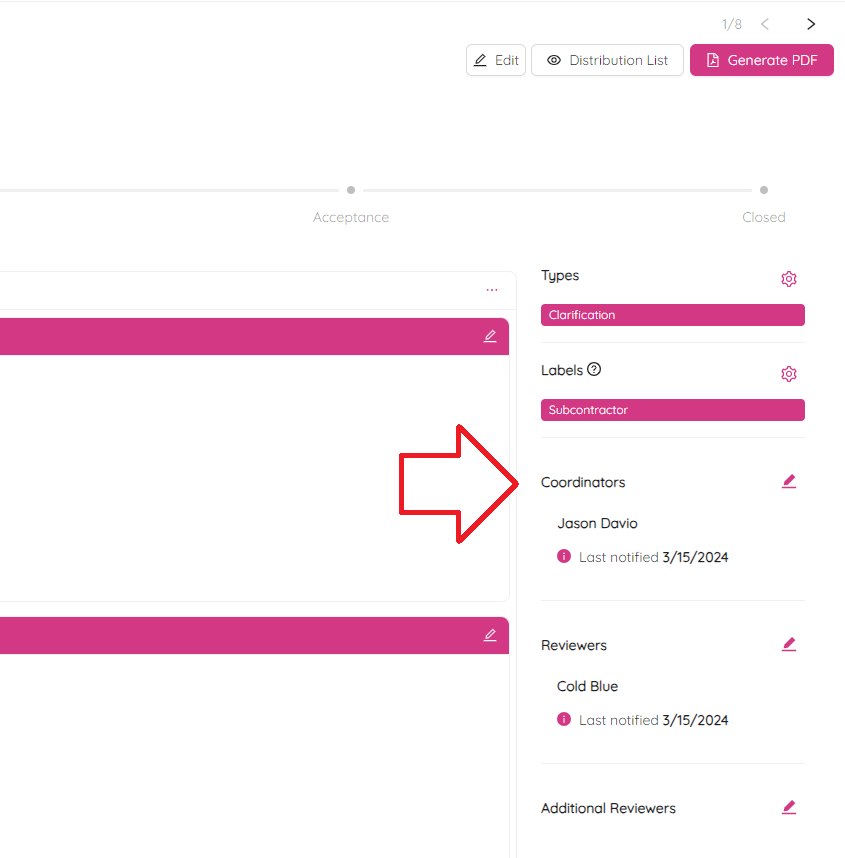
To set or make changes in coordinators list click the  icon next to Coordinators under the Labels section on the right side of the RFI single view page.
Adding a Coordinator
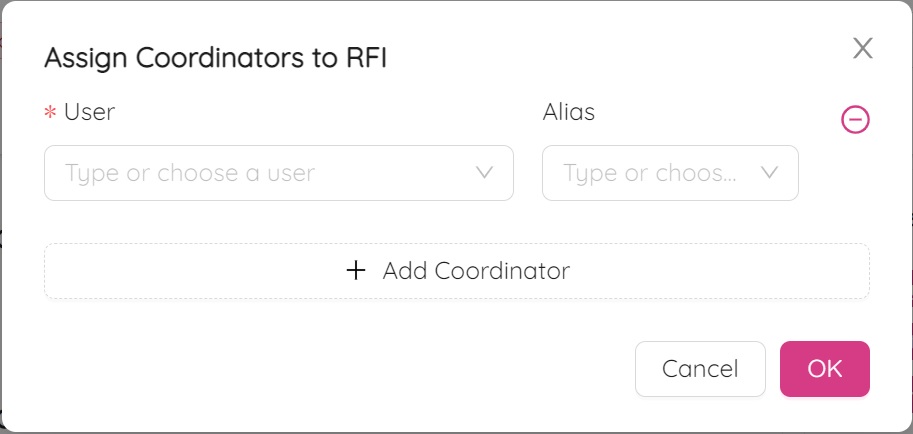
To add a coordinator:
- Click on + Add Coordinator and a pair of User-Alias fields will pops up.
- Click in the User field to pick a user from the list.
If the person you need is not listed, contact the Project Admin.
- If you are filling the information on behalf of someone else, choose that person in the Alias dropdown list.
If their name is not available, contact the Project Admin.
- Submit by clicking the OK button.
Deleting a Coordinator or Alias
To delete a coordinator:
- Click on the
 icon next to the Alias to delete the selection.
- Once you click OK, an email will be sent automatically to the assigned Coordinator.
Submitting
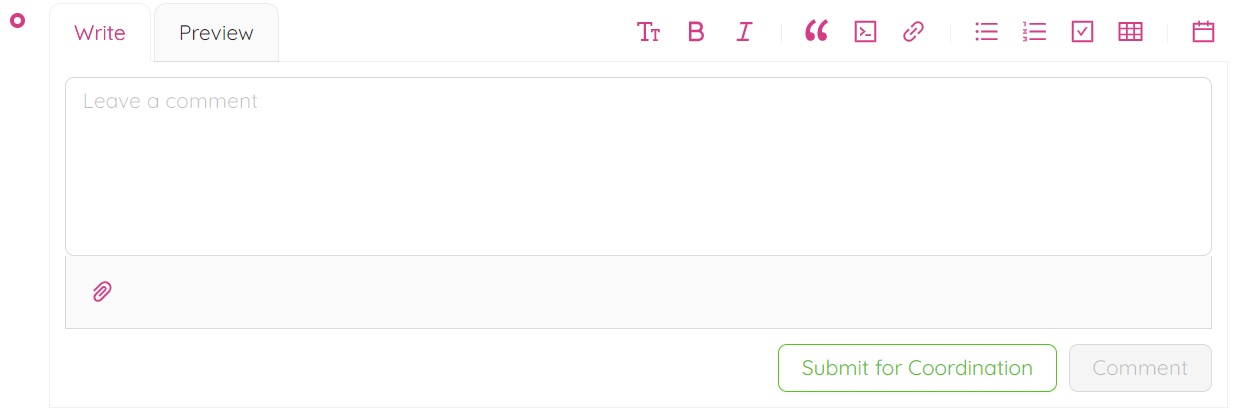
- Scroll down to the Leave a Comment section at the bottom of the page.
- Type any comments you would like to add, using different formatting options as needed.
- If necessary, upload documents by clicking the
 icon and selecting the required document.
 - Click Submit for Coordination.
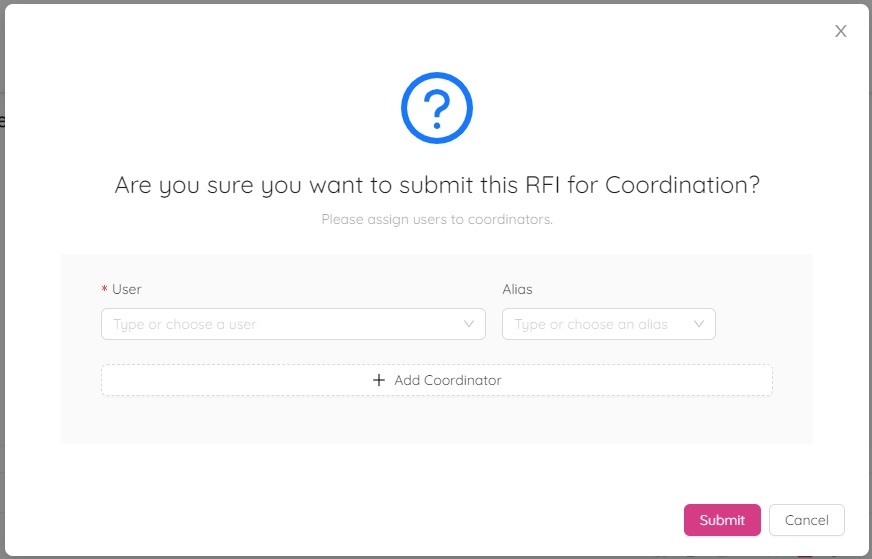
- A popup message will appear asking, Are you sure you want to submit this RFI for Coordination? followed by Please assign users to coordinator.
- Verify that all coordinators are added and click Submit.
- The RFI status will change to Coordination.
NOTE: Only ONE of the Coordinators will have the opportunity to respond to the RFI.
Submitting to Technical Review

As a Coordinator, you can review the RFI and assign Reviewers, Additional Reviewers, and Acceptor(s). Refer to the section Coordinators if you need to add the Coordinator role to Users in your project.
Reviewers and Additional Reviewers
Click on the icon to select Reviewers/Additional Reviewers at the right side of the RFI single view page.
Adding Reviewers
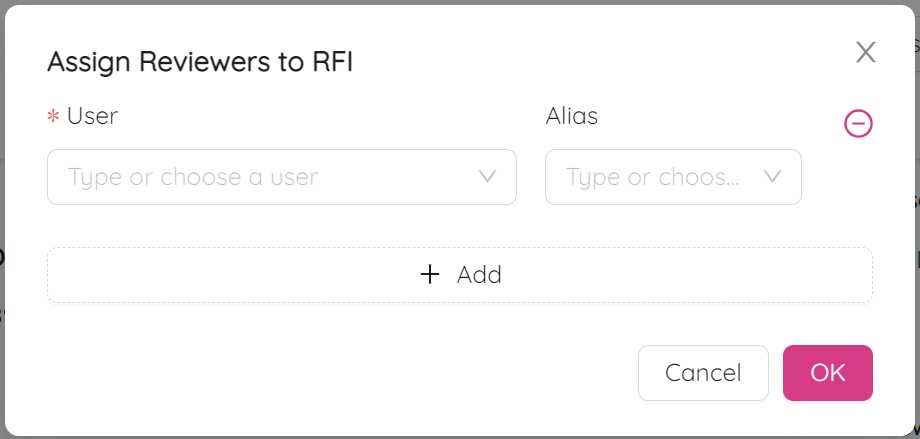
- Click on + Add to add a new reviewer section.
- Click in the cell below * User to display a list of available users. If the person you need is not listed, contact the Project Admin.
- If you are filling the information on behalf of someone else, choose that person in the Alias dropdown list. If their name is not available, contact the Project Admin.
- After adding the Reviewer and/or Alias, click the OK button.
Repeate the steps above to select the Additional Reviewers.
An automatic email will be sent to the Reviewer(s) for this RFI. If multiple Reviewers are assigned, they will all have the opportunity to respond to the RFI.
Acceptors
Click on the icon to select Acceptors at the right side of the RFI single view page.
Adding Acceptors
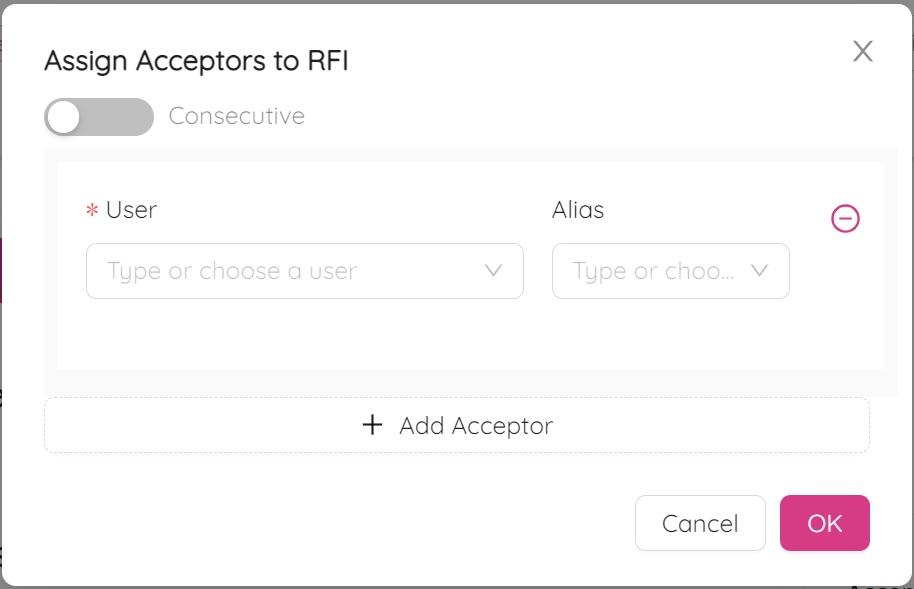
- Click on + Add to add an acceptor section.
- Click in the cell below * User to display a list of available users. If the person you need is not listed, contact the Project Admin.
- If you are filling the information on behalf of someone else, choose that person in the Alias dropdown list. If their name is not available, contact the Project Admin.
- Optionally, you can click on the Consecutive toggle to make acceptors accept consecutively or parallel.
Submitting
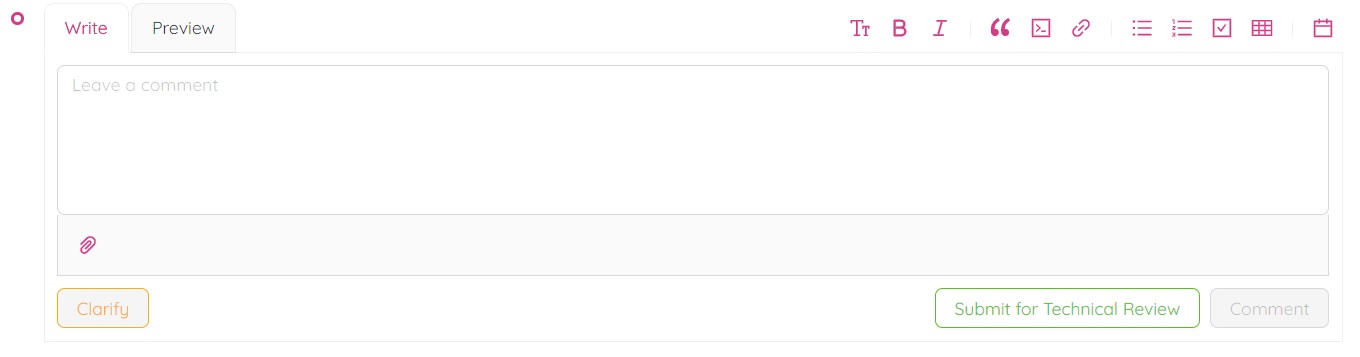
- Scroll down to the Leave a Comment section at the bottom of the page.
- Type any comments you would like to add, using different formatting options as needed.
- If necessary, upload documents by clicking the icon and selecting the required document.
- Click Submit for Technical Review.
- A popup message will appear asking, Are you sure you want to submit this RFI for Technical Review? At this stage, you can add more Reviewers and Acceptors, and switch the toggle to make the Acceptors accept consecutively or not.
NOTE: At the bottom of the screen, you can set the RFI Visibility as Internal or External.
- After submitting, the RFI status will change to Technical Review, and an email will be sent to the Reviewer(s) for this RFI.
Link RFI with previously Issued RFI
After submitting for Technical Review, the RFI can be linked with previous RFIs. This can be accomplished by editing the RFI history, specifically under Submitted for Technical Review.
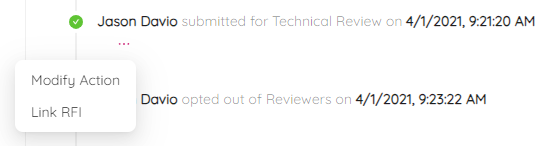
- Find submitted for Technical Review record in RFI's history.
- Click on the
 icon.
icon. - In the pop-up select Link RFI option.
- Enter RFI number you want this RFI to be linked with. If you are linking multiple RFI’s, use comma to separate the RFIs.
- Click on Save to save the link.

NOTE: You will notice linked RFI number in history and RFI log (see Linked RFIs column).
Editing an RFI as a Coordinator
- To edit information in the RFI, click the icon in the section you want to edit.
- Scroll down to the bottom of the page, type any comments you would like to add, and click Submit for Technical Review.
- A popup message will appear asking, Are you sure you want to submit this RFI for Technical Review? followed by Please assign users to Reviewers & Acceptors.
- At this stage, you can verify and add more Reviewers and Acceptors, as well as turn the toggle on requiring Acceptors to answer consecutively.
- Set RFI Visibility as Internal or External below Reviewers and Acceptors.
- After submiting, the RFI Status will change to Technical Review, and an email will be sent to the Reviewer(s) for this RFI. Note that only ONE of the Reviewers will have the opportunity to respond to the RFI.
NOTE: If you as a Coordinator would like to clarify something in the RFI prior to submission for Technical Review, refer to the section on Clarify RFI.
Technical Review Response

Reviewers can submit a technical response or request clarification for the RFI.
Submitting a Technical Response
- Scroll down to the Leave a comment section at the bottom of the RFI single view page.
- Type your response and use any formatting as required.
- Submit by clicking on Submit Response.
- When you submit, a popup message will appear asking for confirmation.
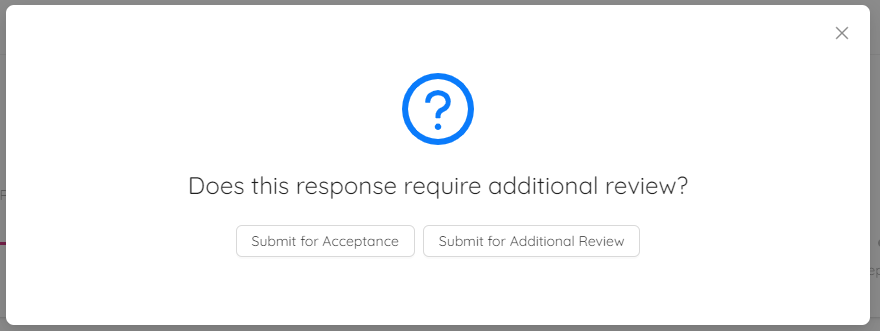
From here you have two options: Submit for Acceptance or Submit for Additional Review.
Submit for Additional Review
If there is a need for Additional Review and the Additional Reviewers are already entered in the RFI:
- Click Submit for Additional Review.
- A window will pop up asking, Are you sure you want to submit this RFI for Additional Review? followed by Please assign users to additional reviewers and acceptors. In this window, you can verify and add Additional Reviewers and Acceptors if they have not already been entered in the RFI.
- Once you click Submit, an email notification will be sent to the Additional Reviewers.
Submit for Acceptance
If there is no need for Additional Review and you are ready to Submit for Acceptance:
- Click Submit for Acceptance.
- A window will pop up asking, Are you sure you want to submit this RFI for Acceptance? followed by Please assign users to acceptors. In this window, you can verify and add Acceptors if they have not already entered in the RFI.
NOTE: To clarify some information for the RFI from the Coordinator prior to submitting Technical Response, refer to the section Clarify RFI.
Additional Review Response
If you are an Additional Reviewer for an RFI, follow these steps:
- Click on the link for the RFI from your email. Log into Ethos using your Username and Password. As a result you will be automatically directed to the RFI that requires your additional review and response.
- Review the RFI.
- Scroll to the bottom of the page and find a Leave a Comment section.
- Type your response and use any formatting as required.
- Click Submit Response.
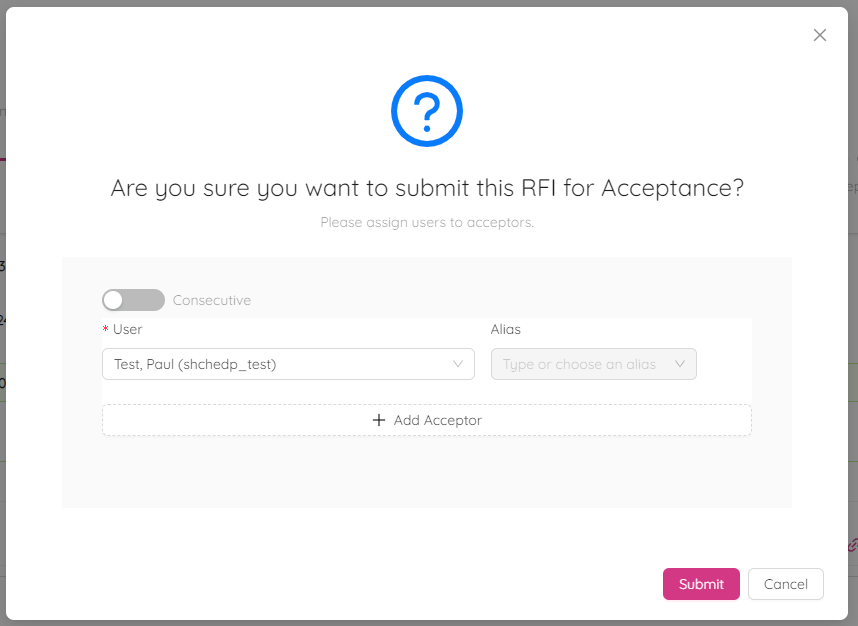
- A window will pop up on your screen saying, Are you sure you want to submit this RFI for Acceptance?
- Add more acceptors if you need, and click the Submit button.
NOTE: Applicable parties assigned to the RFI will receive the email notification for your response.
NOTE: Refer to the Clarify RFI section if you would like to clarify certain points for an RFI prior to submitting a response.
Clarifying
Open the RFI single view and click the Clarify button at the bottom of the page to submit a clarification request. In the Leave a Comment box, describe what needs to be clarified.

Acceptance
Acceptors are designated by the Coordinator or Project Admin. There may be one or multiple acceptors. If there are multiple acceptors assigned to the RFI, all of them will need to accept the RFI. If the acceptance is set as consecutive, the RFI must be accepted in the predefined order.
If you are an acceptor, follow these steps:
- Click on the link for the RFI from your email. Log into Ethos using your Username and Password. As a result you will be automatically directed to the RFI that requires your acceptance.
- Review the RFI responses.
- Scroll to the bottom of the page and find a Leave a Comment section.
- Type your Response and use any formatting as required.
- Click on Accept.
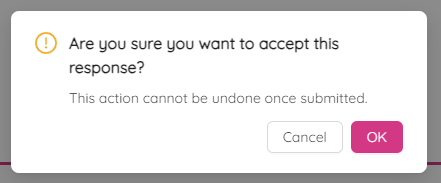
- A window will pop up confirming your acceptance.
NOTE: Applicable parties assigned to the RFI will receive an email notification for your response.
NOTE: Refer to the Clarify RFI section if there is a need for clarification prior to accepting an RFI.
Closing an RFI

Once an RFI is accepted by all the Acceptors, the Project Administrator can close the RFI by permorming the following steps:
- Scroll to the bottom of the RFI single view page and find the Leave a Comment section.
- Type your comment and use any formatting as required.
- Click on Close.
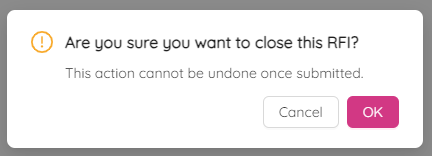
- Confirm the closure of the RFI.
NOTE: Applicable parties assigned to the RFI will receive an email notification for your response.